Guest Wi-Fi at your premises: a separate network with no risk to your business
How to set up guest Wi-Fi in a café, guesthouse or practice: a separate network, device isolation, a password with a QR code, a bandwidth limit and router updates.
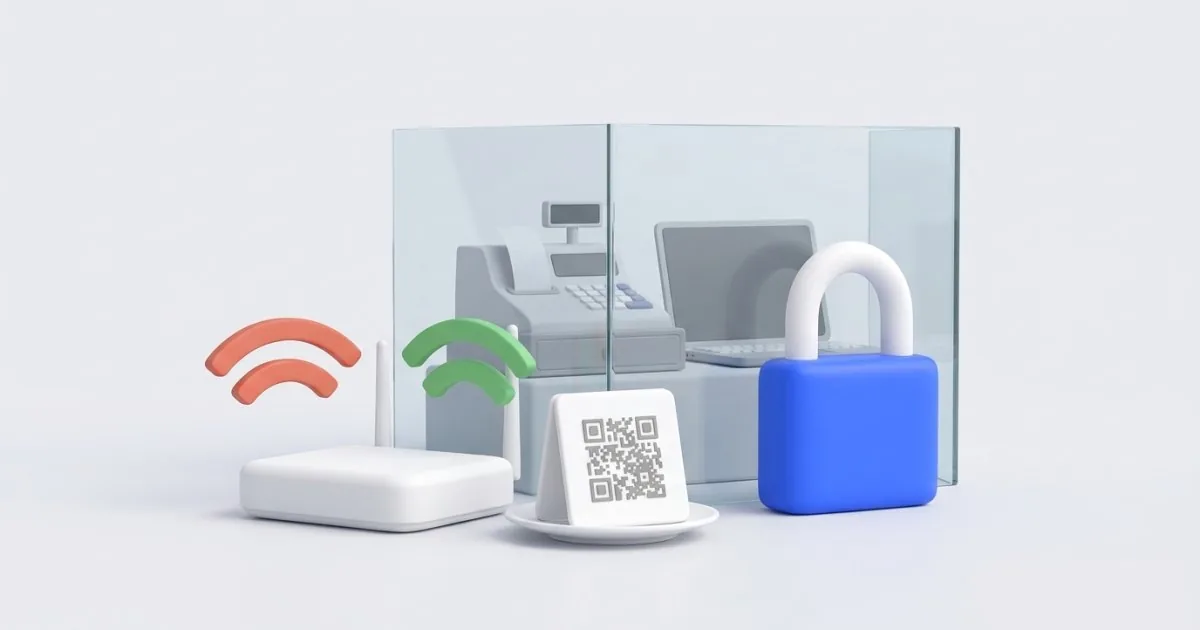
Guests in a café, guesthouse, salon or a practice’s waiting room want one thing: the Wi-Fi password. Many businesses give them the password to the same network that runs the cash register, the payment terminal and the computer with the invoices. It’s convenient, but risky.
In this guide I’ll show you how to set up, in an hour, a separate guest network that has no access to anything that belongs to the business. You’ll also get ready-made text for a sign with a QR code and a checklist to tick off next to the router.
Why guests shouldn’t be on the business network
On a typical home or business network, all devices “see” each other. A guest’s phone can see the printer, the computer with your files, a camera and sometimes the cash register panel. That doesn’t mean every guest will go looking for something. But all it takes is one infected phone that scans the network for weak spots on its own.
The second issue is your responsibility for keeping things in order. If someone does something illegal over your connection, the questions will come to you first, as the subscriber. I won’t go into the legal details here, because they depend on the situation. The practical rule is simple: the more separated guests are from the business and the less they can do on the network, the lower the risk.
Step 1: turn on the guest network in your router
Most newer routers have a built-in guest network feature. Its name depends on the manufacturer; usually it’s “Guest network” or, in Polish, “Sieć gościnna”.
- Log in to the router’s admin panel. You’ll find the address on the sticker on the bottom of the device; it’s often 192.168.0.1 or 192.168.1.1.
- Go to the Wi-Fi settings and look for the guest network option.
- Turn it on and give it a different name from the business network, for example “Cafe-Guests”.
- Set WPA2 or WPA3 encryption and a password. Don’t leave the network without a password.
If your router doesn’t have this feature, you have two options. You can replace the router with a model that has a guest network. Or you can ask your internet provider or an IT technician for a separate network (a so-called VLAN).
Step 2: turn on device isolation
A separate network name alone is not enough. Look for an option that blocks communication between devices. It’s most often called “Client isolation”, “AP isolation” or, in Polish, “Izolacja klientów”.
Once it’s on, one guest’s phone can’t see another guest’s phone. Also check that the guest network has access to the local network blocked. On many routers this is the same option as “internet access only”.
How to check it in practice
- Connect your own phone to the guest network.
- Try opening the router’s address (e.g., 192.168.1.1) in the browser. If the panel doesn’t open, that’s good.
- Try printing something on the business printer or finding it in the list of devices. It shouldn’t work.
Step 3: secure the router itself
Even the best-configured guest network won’t help if the router has weak security. Do three things:
- Change the default administrator password. Bots know credentials like “admin / admin”, and anyone with access to the router can read the password off the sticker. Set a long, unique password and store it in a password manager or a safe.
- Update the router’s software. In the panel you’ll find a tab called something like “Update” or “Firmware”. Turn on automatic updates if the router has them, or set yourself a monthly reminder.
- Turn off remote access to the panel if you don’t use it. The router’s panel shouldn’t be reachable from the internet.
If the router is old and the manufacturer no longer releases updates for it, replace it. Router updates work the same way as website updates: without them, vulnerabilities stay open. The same goes for your business website, which I write about in technical maintenance.
Step 4: limit bandwidth so guests don’t slow down your business
A single guest streaming high-quality video can take up a large part of your connection. As a result, the payment terminal or the booking system runs slowly.
In the guest network settings, look for an option to limit speed per device or for the whole network. If the router doesn’t have one there, look in the QoS (“quality of service”) section. A good starting point is a limit high enough for a guest to check email and open a map, but not so high that they clog the connection. Choose the exact value based on your connection and the number of guests, because there’s no single number that works for everyone.
It’s also worth setting a limit on the number of devices on the guest network, if your router allows it.
Step 5: a sign with the password and a QR code
Guests shouldn’t have to ask for the password at the counter. Put a small sign on the table or by the entrance with the network name, the password and a QR code that connects a phone to the network with a single tap.
A Wi-Fi QR code usually looks like this:
WIFI:T:WPA;S:Cafe-Guests;P:YourPassword123;;
Paste this text into any QR code generator, print the code and laminate it. Before printing, test it on two phones, an iPhone and an Android phone.
Text for the sign, ready to copy:
Guest Wi-Fi Network: Cafe-Guests Password: YourPassword123 Scan the code with your phone’s camera to connect without typing the password. Please use the internet in accordance with the law. The network is available at limited speed.
Change the password every now and then, for example every six months or when an employee who knew it leaves the company. After changing it, print a new sign. You’ll find more about QR codes in the guide QR codes in business: flyers, menus and reviews.
What not to do
- Don’t give guests the password to the business network, not even “just for a moment”.
- Don’t leave the network without a password. Anyone from the street could then use your connection.
- Don’t collect guests’ data at login if you don’t have to. A name, email address or phone number entered on a login page means obligations under the GDPR. A simple password is easier.
- Don’t connect the cash register, the terminal or the accounting computer to the guest network, even if it’s more convenient. Ideally, connect them by cable or to a separate, closed business network with a strong password.
- Don’t leave default passwords on the router, cameras and printers.
Checklist to tick off
| What to check | Done |
|---|---|
| Separate guest network with a different name | yes / no |
| WPA2 or WPA3 encryption and a password | yes / no |
| Device isolation turned on | yes / no |
| No guest access to the business network (phone test) | yes / no |
| Router administrator password changed | yes / no |
| Router software up to date | yes / no |
| Bandwidth limited for the guest network | yes / no |
| Sign with QR code printed and tested | yes / no |
When every row says “yes”, the guest network is set up properly for a small business.
Summary
A separate guest network, device isolation, a strong administrator password and an up-to-date router take an hour of work and keep customers away from your cash register and computer. A sign with a QR code saves your staff from questions about the password.
If, besides the network at your premises, you want to check the security of your business website, write to me. You can also start with the free Check your website tool, which checks your website for security, speed and SEO in about 30 seconds. If you want to commission a full test, I’ll do a security audit.
Frequently asked questions
Yes. On a single network, a guest’s phone sees the same devices as you do: the computer with your invoices, the cash register, the printer, sometimes cameras. A separate guest network means outside devices have no access to them, even if one of the phones is infected.
It can, as long as the guest network is isolated from the business network. Then anyone who learns the password only gets internet access, just like any guest. Change the password from time to time, ideally when someone on your staff leaves.
The simplest option is to replace the router with a model that has a guest network feature. Or you can ask your internet provider or an IT technician to set up a separate network (VLAN). If neither is an option, don’t connect the cash register and the business computer to the same network as your guests; connect them by cable to a separate device instead.
It depends on the regulations and the situation, so I won’t give a single answer. In practice, a guest network with limited bandwidth, an up-to-date router and terms of use on the sign reduce the risk of problems. If in doubt, ask a lawyer or your internet provider.
You don’t, and in a small venue it’s usually not worth it. Collecting names, email addresses or phone numbers means obligations under the GDPR. A simple password on a sign is easier and safer.
Related services
Have a similar project?
Describe what you need and I’ll send a quote within 24 hours. New clients get 20% off their first project.